Decal, Plugins, and Thwargle Launcher Install Instructions
Pay special attention to install locations or the scripts may fail!
Decal Install
Step 1

Open Lutris and select install from local yaml file, and navigate to Decal.yaml
Step 2
Step 3
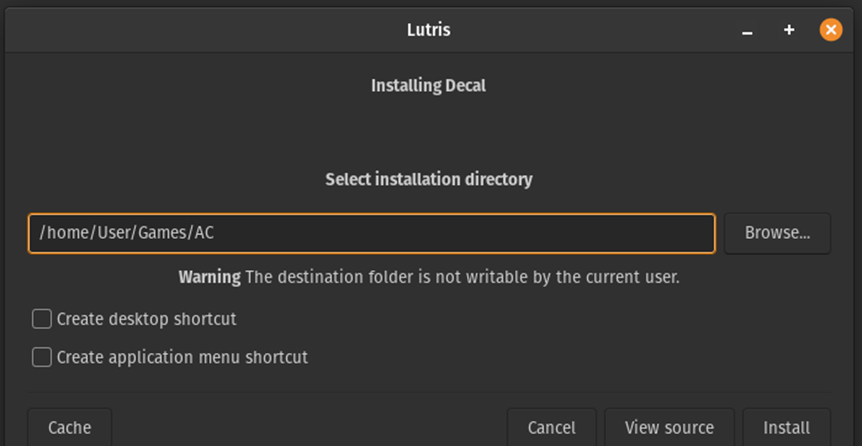
Select the same install location as you picked for AC, then click install
Step 4
Step 5
Step 6
Step 7
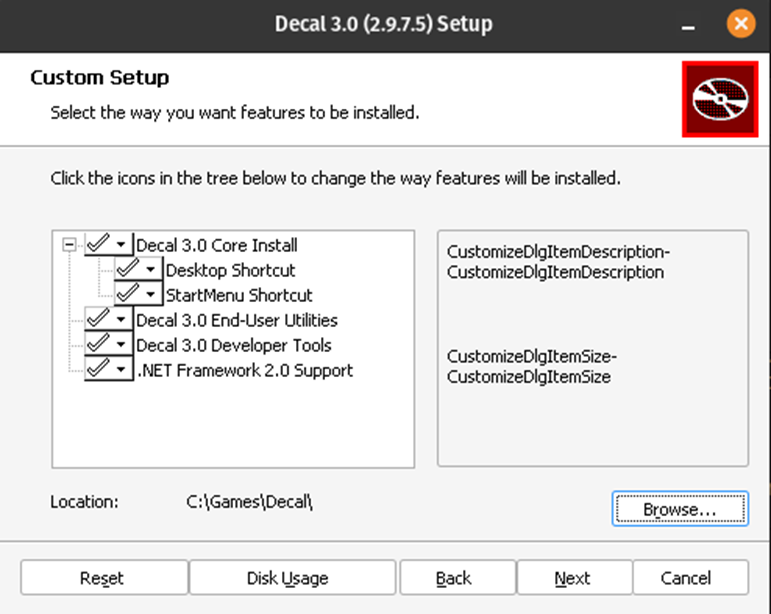
Note: Decal must be installed to C:\Games\Decal Set install path and click next, then click install
Step 8
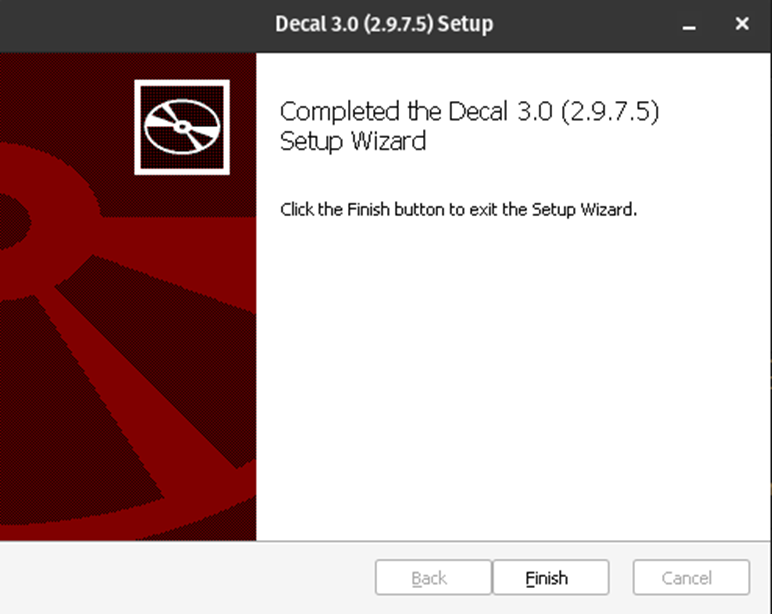
Note: You must click finish before selecting the AC install dir. Click finish
Step 9
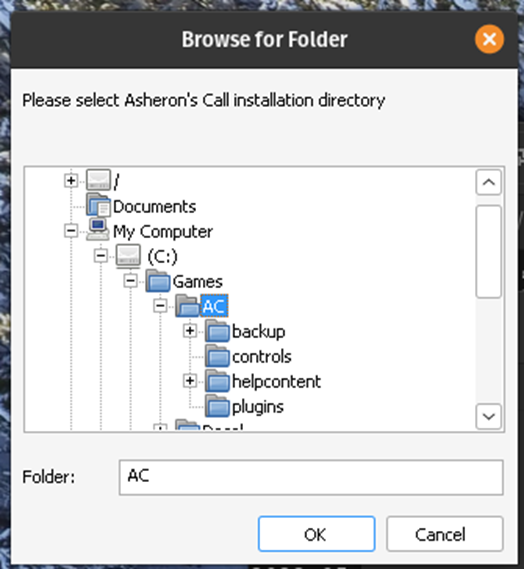
Set your install to C:\Games\AC and click okay.
Step 10
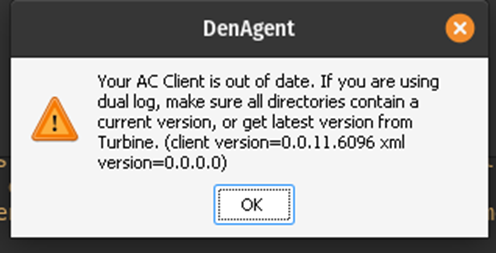
Click okay and and exit decal using the decal tray icon. If you don’t lutris will not finish the install for decal.
Note: Do not try to update the decal .dlls until after Lutris has completed the install. If you do it will corrupt decal and you will have to start over.Step 11
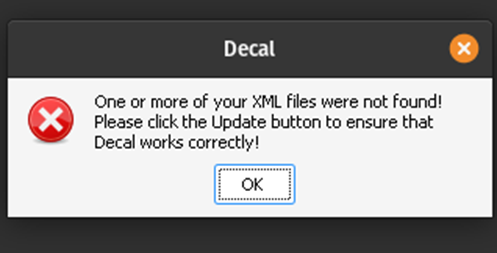
Once Lutris have completed the decal install script you can then launch Decal and update the .dlls
Step 12
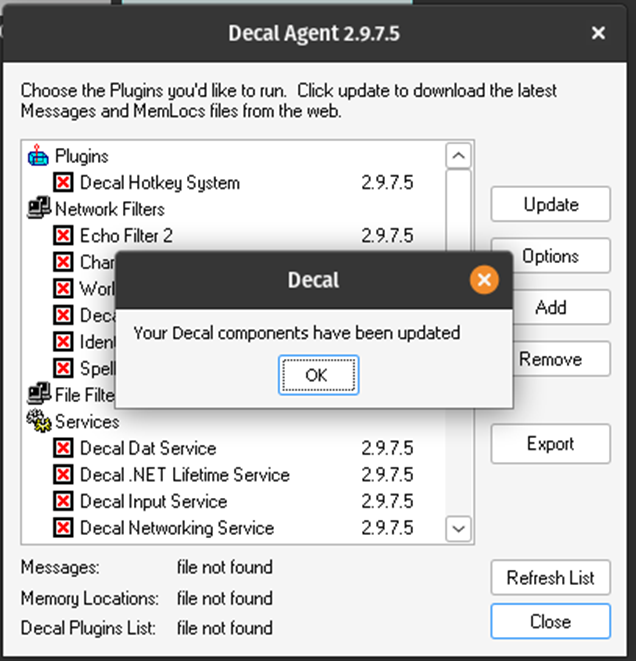
Click update, then click ok.
Step 13
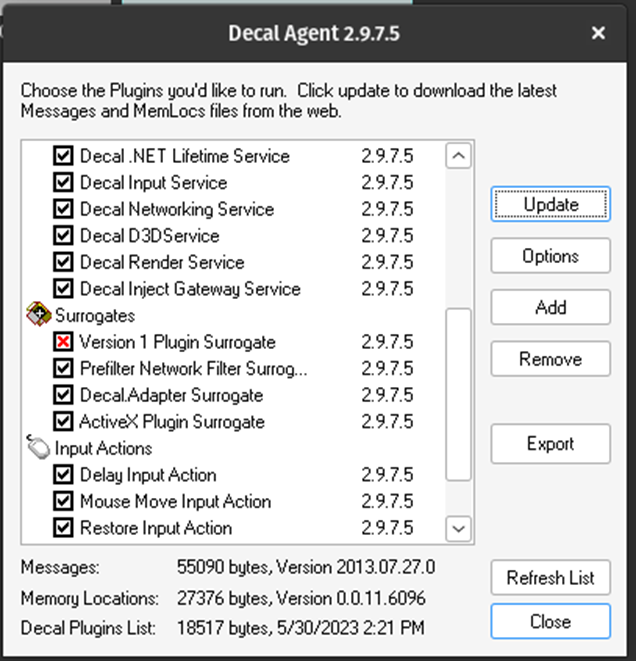
All components should have a black check except “Plugin Surrogate”. Close the windows and close down decal.
Plugin Install


